Short answer
The best IPTV service for a Smart TV is the one that gives you plain Xtream Codes or M3U credentials, because those work in every player your television is allowed to install. On Samsung Tizen and LG webOS you are limited to the handful of IPTV apps in their own stores, so check that the app you intend to use is listed for your model and year before you pay for anything. On Android TV or Google TV you can install TiviMate or IPTV Smarters directly and the experience is far better. If your TV is older than about 2018, or its store has nothing usable, a cheap streaming stick will beat it comfortably. DrogonTV hands you Xtream Codes and M3U for any of those routes, publishes its prices, and backs the subscription with a 7-day money-back guarantee.
Nearly every television sold in the last decade calls itself smart, and the assumption that follows is that it can therefore do anything a phone can. With IPTV that is only half true. The stream itself is trivial for a modern panel to decode. The obstacle is the operating system wrapped around it, because Samsung and LG both run closed platforms where you can only install what they have approved. This guide covers what actually works on each system, how to set it up, and the honest point at which you should stop fighting the television and plug in a stick.
Three Platforms, Three Very Different Answers
Before you compare providers, work out which system your television runs. It changes everything about what you can install, and it is the reason two people with the same subscription can have completely different experiences.
| Platform | Typical brands | What IPTV is like on it |
|---|---|---|
| Android TV / Google TV | Sony, Philips, TCL, Hisense, Nvidia Shield | The best case. Full player choice including TiviMate, sideloading is possible, and everything behaves like a proper Android box. |
| Tizen | Samsung | Workable. Only store-approved IPTV apps, a smaller selection, and availability varies by model year and country. |
| webOS | LG | Similar to Tizen. A few solid players in the LG Content Store, no sideloading in practice, and older sets get left behind. |
| Roku TV | TCL, Hisense, Sharp in some regions | The most restricted. Very little native IPTV support, so an external stick or box is usually the only sensible route. |
| Fire TV built in | Toshiba and Amazon-branded sets | Effectively a streaming stick inside the television, with the same sideloading freedom and the same memory limits. |
Find the platform in Settings, under About or Support. If the menu mentions Google Play you are on Android TV. If it mentions the Samsung Apps or LG Content Store, you are on a closed system and the app list matters more than the provider list.
What a Provider Must Support for a Smart TV
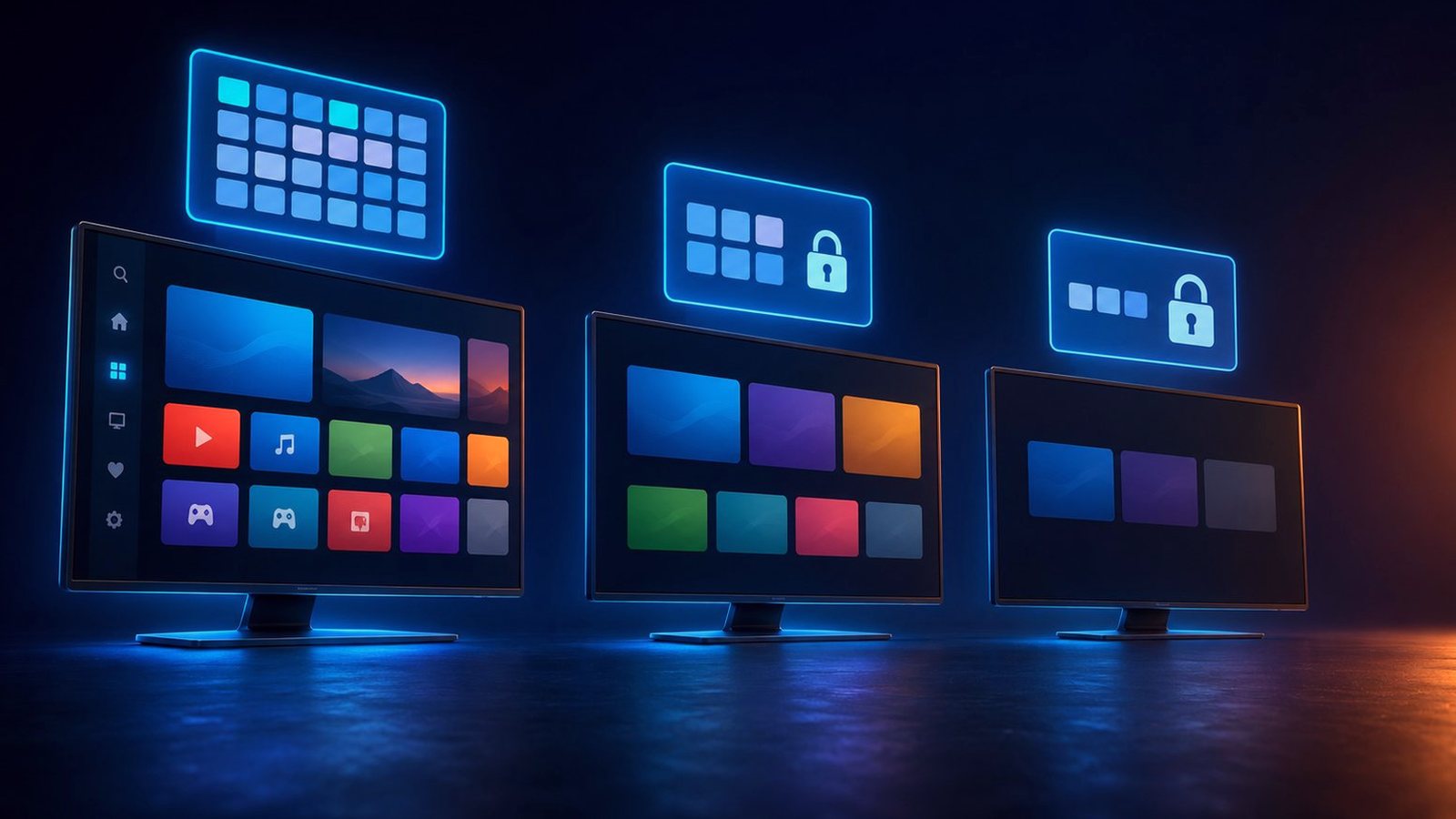
Channel counts in adverts tell you almost nothing about whether a service will work on the television you already own. These five things do.
- Xtream Codes and M3U credentials handed to you directly. A portal URL, a username and a password will log into any player on any platform. That single detail is what lets you move from the television’s own app to a stick, or from one player to another, without buying anything again.
- No dependence on a branded APK. Samsung and LG do not allow sideloading, so a provider whose service only runs through its own downloadable app simply cannot work on your television. Ask before you pay, not after.
- An EPG that loads on a slow processor. Smart TV chips are much weaker than a phone’s. A guide with tens of thousands of entries can take minutes to appear or fail outright, which is why trimming your channel list matters more here than anywhere else.
- Enough simultaneous connections. Most households have a set in the lounge, a phone, and sometimes a second television. One connection means one screen at a time and an argument on match night.
- Published prices and a refund window. If the price only appears in a private message it will change to suit the buyer, and with no refund policy the entire risk of an incompatible television lands on you. Our guide to reading Reddit threads goes deeper on telling genuine recommendations from reseller marketing.
The two-question test. “Do I get Xtream Codes details?” and “Which players do they work in on my television?” If the answers are yes and a named list, you can buy with confidence. If the answer is “you just use our app”, your Samsung or LG will never run it.
IPTV on a Samsung Smart TV (Tizen)
Samsung sets cannot sideload, so you are choosing from the IPTV players available in the Samsung Apps store for your region and model year. The selection shifts over time, but the process does not.
- Open the Apps section from the Samsung home bar and use the search icon.
- Search for an IPTV player such as IPTV Smarters or a comparable Xtream Codes client, and check that it lists your television’s year as supported.
- Install it and open it. Some Tizen players ask you to register the set’s device ID on the developer’s website first, a one-off step that carries a small fee in a few cases.
- Choose the Xtream Codes login and enter the portal URL, username and password exactly as your provider sent them, watching for capital letters and any trailing slash.
- Let the channel list and guide finish loading. On a television processor this can take several minutes the first time. A half-loaded guide looks exactly like a broken service, so wait it out.
- Hide the groups you will never watch. On Tizen this is a performance change rather than tidiness. A shorter list means faster zapping and fewer freezes.
If your Samsung is from roughly 2017 or earlier, expect the store to offer little and the browser route to be painful. That is the moment to add a stick rather than replace the television.
IPTV on an LG Smart TV (webOS)
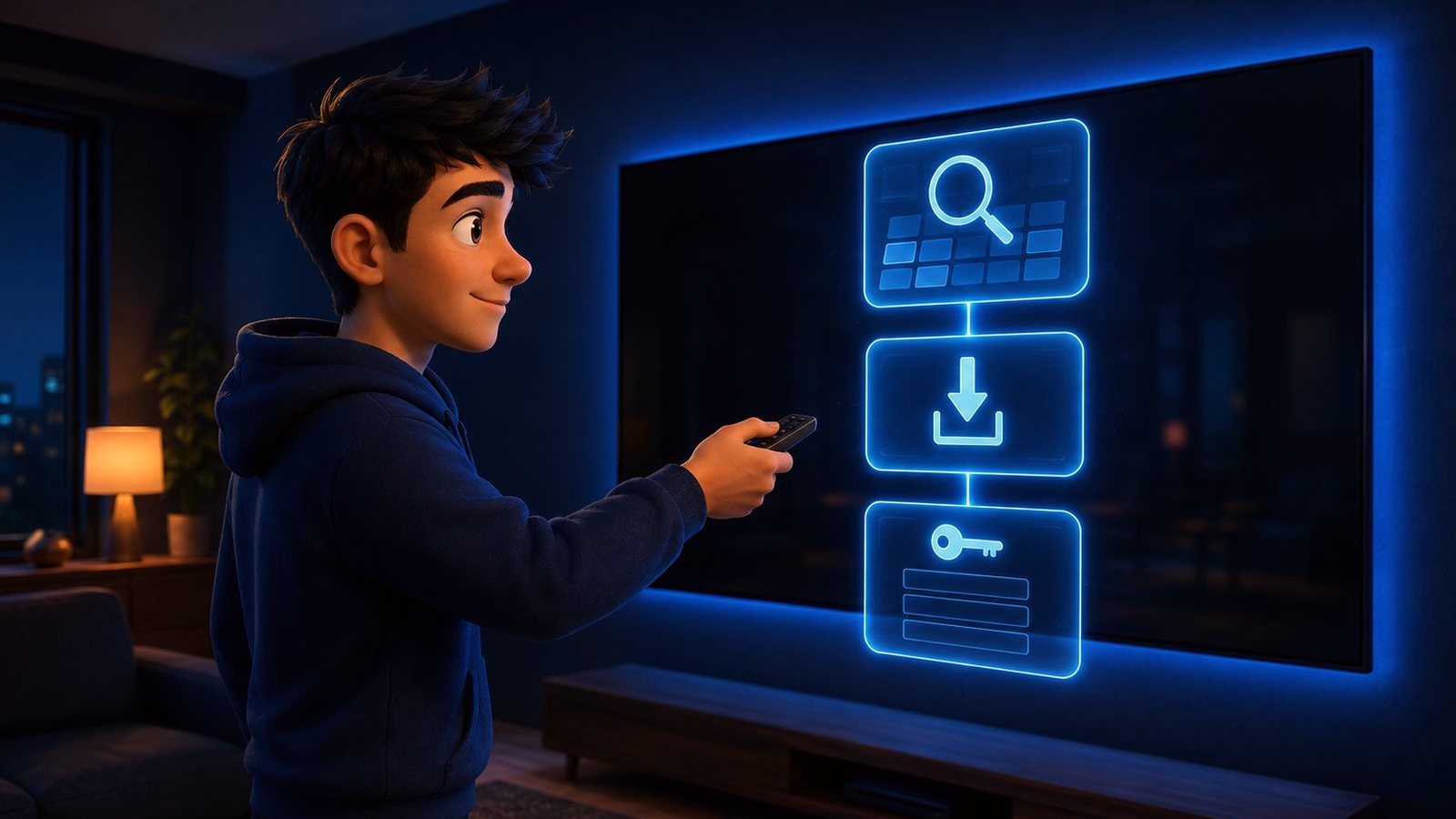
LG works almost identically, through the LG Content Store instead. The main differences are the remote and the naming.
- Open the LG Content Store from the home ribbon and search for an IPTV or M3U player.
- Install a player that supports Xtream Codes rather than one that only accepts a hard-coded playlist file, so you can change provider later without reinstalling anything.
- Enter your portal URL, username and password on the login screen. Use the Magic Remote pointer for typing, it is far quicker than the arrow keys.
- Refresh the EPG once and confirm that programme names and times look correct. A guide full of “No Information” is a sign nobody maintains the service.
- Set the television’s time zone correctly. A wrong time zone is the single most common reason an LG guide looks shifted by an hour or two.
IPTV on Android TV and Google TV
This is the easy case, and if you are still shopping for a television it is the reason to prefer Sony, Philips, TCL or Hisense sets running Google’s system. You get the Play Store, full player choice, and sideloading if you want something the store does not carry.
| Player | Best for | Watch out for |
|---|---|---|
| TiviMate | The best guide on any TV platform, fast zapping, recording, multiple playlists | The useful half sits behind a premium tier, and it is Android only |
| IPTV Smarters Pro | Free, accepts Xtream Codes in three fields, runs on nearly everything | Heavier on memory, and the interface feels dated |
| Sparkle TV or XCIPTV | Light and quick on low-memory televisions | Fewer features and more basic EPG handling |
| The store player on Tizen or webOS | The only route on Samsung and LG, with no extra hardware | Small selection, an occasional one-off activation fee, slower guides |
Install from the Play Store, log in with Xtream Codes, and you are watching in under five minutes. The same credentials from your provider work here exactly as they do on a stick, which is the whole point of insisting on them.
When the Television Is Enough, and When to Add a Stick
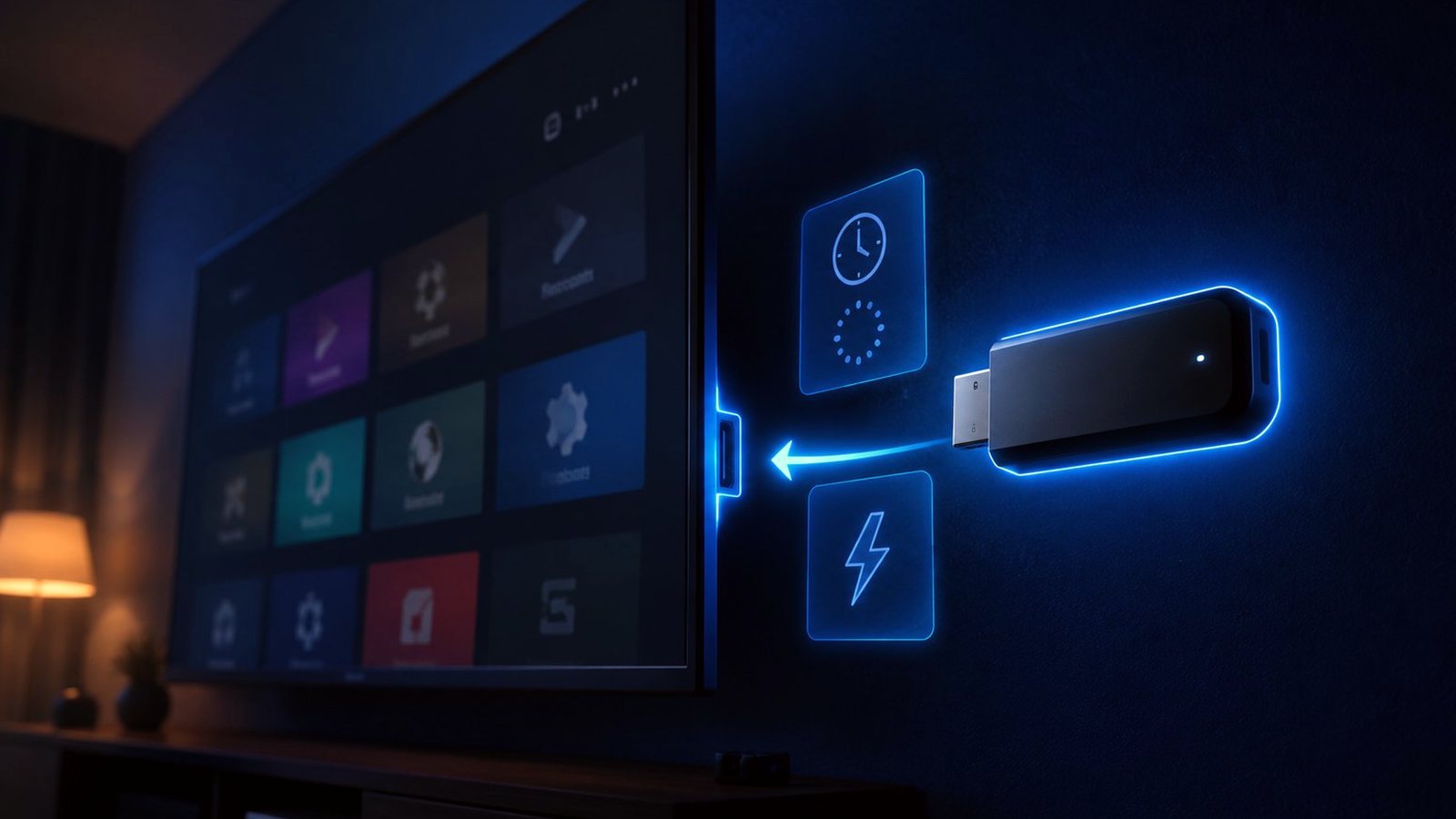
There is no pride to be had in forcing an old television to do this. A stick costs less than two months of most subscriptions and removes every software limitation at once.
- Use the television alone if it runs Android TV or Google TV, or if it is a recent Samsung or LG whose store carries a player you are happy with. One remote, no extra box, nothing else to go wrong.
- Add a stick if your set is Roku-based, predates about 2018, has an empty app store, takes minutes to load a guide, or closes the player when the channel list is large.
- Always add a stick if you want TiviMate specifically. It does not exist on Tizen or webOS and it is not coming.
- Keep the television’s own app as a backup. Even when a stick is your main route, having the credentials working in the set’s player means one dead HDMI port never ends your evening.
Do not judge a service by a Smart TV’s first ten minutes. A weak processor loading tens of thousands of channels over Wi-Fi will stutter no matter how good the line is. Trim the list, wire the television if you can reach it, and watch one full evening before deciding. Our Firestick guide works through the same checks in order.
Common Smart TV IPTV Problems
| What you see | Most likely cause | Fix |
|---|---|---|
| The app store has no IPTV player at all | An older Tizen or webOS set, or a regional store | Add a streaming stick, or check the store under a different region account |
| The player installs but rejects your login | A typo, a trailing slash, or the wrong port in the portal URL | Re-enter it character by character exactly as it was sent |
| The channel list takes minutes to appear | A weak television processor with a very large playlist | Hide unused groups so the list the set has to hold is far smaller |
| The guide is shifted by an hour or two | The television’s time zone or daylight saving setting | Correct the time zone, then force an EPG refresh |
| Everything buffers in the evening only | Wi-Fi congestion, or an oversold server | Wire it with Ethernet first. If it still breaks wired at peak, it is the provider |
| The app closes itself during a match | The television running out of memory | Close other apps, restart the set, and trim the playlist |
| 4K channels play but look soft | The player defaulting to a lower stream variant | Select the higher-quality stream, and set the HDMI input to its enhanced mode |
The Verdict
If your television runs Android TV or Google TV, install TiviMate or IPTV Smarters and you are done. If it is a recent Samsung or LG, use the Xtream Codes player in its own store and trim your channel list so the guide loads quickly. If it is older or Roku-based, stop fighting it and spend the price of two months of subscription on a stick.
What matters in every one of those cases is the same thing: credentials you own rather than an app somebody else controls. DrogonTV supports Xtream Codes and M3U on any Smart TV player, publishes its plans and prices instead of quoting them privately, allows multiple simultaneous connections, and backs the subscription with a 7-day money-back guarantee, so testing it on your own television costs you nothing if the set turns out to be the limitation. If you are setting up several devices at once, our full setup guide covers phones, tablets and MAG boxes as well.
Frequently Asked Questions
Can I watch IPTV on a Smart TV without a box?
Yes, if your television can install an IPTV player. Android TV and Google TV sets can install TiviMate or IPTV Smarters directly. Samsung and LG can use the Xtream Codes players in their own stores. Roku-based televisions and most sets older than about 2018 realistically need an external stick.
What is the best IPTV app for a Samsung Smart TV?
Whichever Xtream Codes player is currently listed in the Samsung Apps store for your model year, with IPTV Smarters the most commonly available. Samsung does not allow sideloading, so the store list is your whole choice. Confirm the app supports your television’s year before buying a subscription.
How do I install IPTV on an LG Smart TV?
Open the LG Content Store, search for an IPTV or M3U player, install one that accepts Xtream Codes, then enter the portal URL, username and password your provider gave you. Refresh the guide once, check the time zone is right, and hide the channel groups you never watch.
Why does IPTV buffer on my Smart TV but not on my phone?
Processor and Wi-Fi. A phone has far more memory and a much stronger chip than a television, and it usually sits closer to the router with a clear signal. Wire the set with Ethernet, trim the channel list so the player holds less in memory, and the gap normally closes.
Do I need an M3U link or Xtream Codes for a Smart TV?
Xtream Codes if you have the choice. It is three fields, it lets the player build a proper guide and category structure, and it survives a change of server on the provider’s side. An M3U link works but is a single long URL that is easy to mistype on a remote and offers less structure.
Will IPTV work on an older Smart TV?
Sometimes, but the app store is the limit rather than the screen. Sets from around 2016 and earlier often have no usable IPTV player left, and the ones they do have load guides very slowly. The panel is still fine, so add a cheap streaming stick rather than replacing the television.
Can I use one subscription on the television and other devices at once?
Yes, provided your plan allows enough simultaneous connections. The same Xtream Codes details log into a player on a phone, a tablet, a stick or a second television. What limits you is how many streams may run at the same time, so match that number to how many people watch together in your house.
Is a Smart TV or a streaming stick better for IPTV?
A stick, in most cases, because it gives you the full range of players and can be replaced for very little when it ages. A modern Android TV set matches it comfortably. A Samsung or LG is workable but restricted, and a Roku set is not really a contender without help.
Try it on the television you already own
Xtream Codes and M3U credentials for any Smart TV player, no forced app, published prices, and a 7-day money-back guarantee so an incompatible set never costs you anything.