Short answer
Use a mature third-party player and your own Xtream Codes credentials, not a seller’s private app. On a phone or tablet, install a well-known IPTV player from the Play Store, enter your server URL, username and password once, and the channel list and guide build themselves. On an Android TV box or Google TV device, do the same with a player designed for a remote control rather than a touchscreen. Set the buffer sensibly, use 5 GHz Wi-Fi or Ethernet, and pick a stream quality that matches the screen you are actually watching. A provider that hands you credentials lets you do all of this. One that forces its own APK does not.
Android is the widest door into IPTV. The same account works on a phone on the train, a tablet in the kitchen, and a £40 box plugged into the television in the living room, and unlike a Firestick or a smart TV, Android puts almost no restrictions on which player you choose. That flexibility is the whole advantage, and it is also where most people go wrong: they install whatever app a seller sent them in a chat message, never touch a setting, and conclude the service is bad when the app was the problem. This guide sets up Android the way it should be done.
Why Android Is the Best Platform for IPTV
Every other platform limits you in some way. A smart TV runs whatever its manufacturer approved for that year’s model. A Firestick is Android underneath but keeps you inside Amazon’s store unless you sideload. Android phones, tablets, TV boxes and Google TV devices simply let you install the player you want, keep more than one installed at a time, and switch between them in seconds when you are diagnosing a problem.
That matters more than it sounds. When a channel stutters, the single most useful test is opening the same channel in a different player. If it is smooth in the second one, the fault was the app. If it stutters in both, the fault is the network or the server. On Android that test takes thirty seconds. On a locked-down platform it is not available at all, which is why so many people spend a week blaming the wrong thing.
Install two players from the start. One as your daily driver and one as a control. It costs nothing and turns most support conversations into a ten-second answer.
Phone, Tablet or Android TV Box?
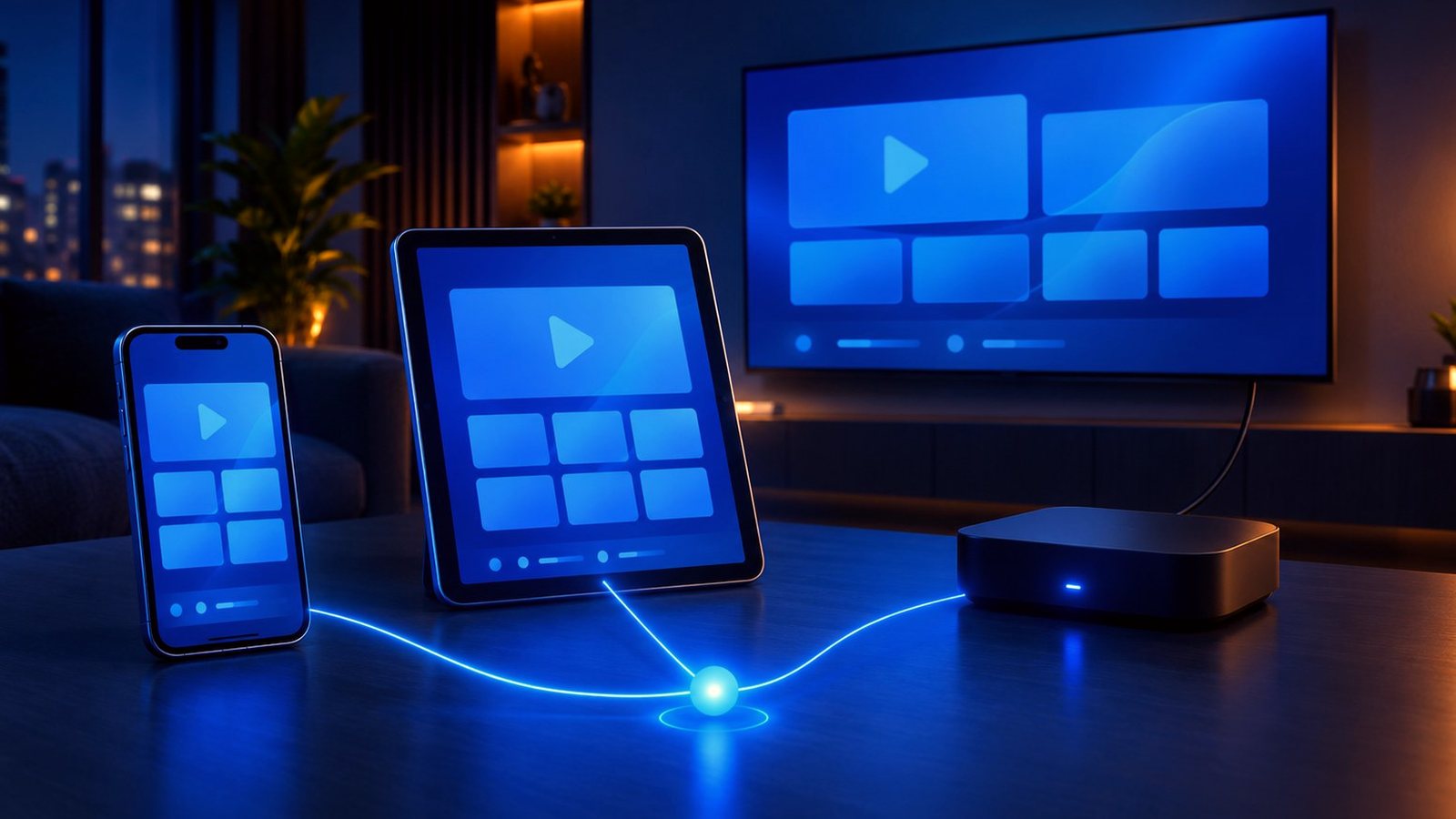
The three form factors are not interchangeable, and the mistake is treating them as if they were.
| Device | Best for | What to watch out for |
|---|---|---|
| Android phone | Watching on the move, testing a line quickly, checking a service before you commit | Mobile data burns through an allowance fast at high bitrates. Drop to a lower-quality stream when you are not on Wi-Fi. |
| Android tablet | A second screen in the kitchen or bedroom, second matches during a busy sports weekend | Older tablets often lack hardware decoding for HEVC, which shows up as stuttering on 4K and some HD channels. |
| Android TV box / Google TV | The main television, all-evening viewing, 4K | Cheap unbranded boxes are the single biggest cause of “the service is bad” complaints. Buy a known device. |
If the television is the main event, an Android TV box or a Google TV device is the better buy than a smart TV app, because it ages independently of the television. When the box gets slow in three years you replace a small box, not a screen. Our smart TV guide goes into that trade-off in more detail, and the Firestick guide covers the closest alternative if you would rather stay in Amazon’s ecosystem.
Choosing an Android IPTV Player
There are hundreds of IPTV players on the Play Store and the differences that matter come down to a short list. Judge any candidate on these points rather than on screenshots.
- Xtream Codes API support. This is the important one. A player with Xtream Codes support pulls your channel list, categories, on-demand library and full electronic programme guide from three fields. A player that only takes an M3U URL gives you a flat list and often no guide.
- Hardware decoding you can toggle. The ability to switch between hardware and software decoding is the fix for a surprising share of playback faults, particularly on HEVC channels.
- An adjustable buffer. A player that lets you raise the buffer turns a marginal connection into a watchable one.
- A remote-friendly interface, on TV devices. Apps built for touch are miserable with a D-pad. On a box, use a player designed for the ten-foot view.
- Multiple playlists or profiles. Useful if you keep a second line, or you are trialling a provider alongside your current one.
- Regular updates from an identifiable developer. A player that has not been updated in two years will eventually break on a new Android release.
Do not sideload an APK a seller sends you in a chat. An installer from a link in a message is software of unverified provenance, installed with permissions, on a device that sits on your home network. If a provider cannot work with standard players, that is a statement about the provider. Our guide to telling a licensed service from an unlicensed one covers why forced private apps are such a consistent red flag.
Setting Up in Five Minutes
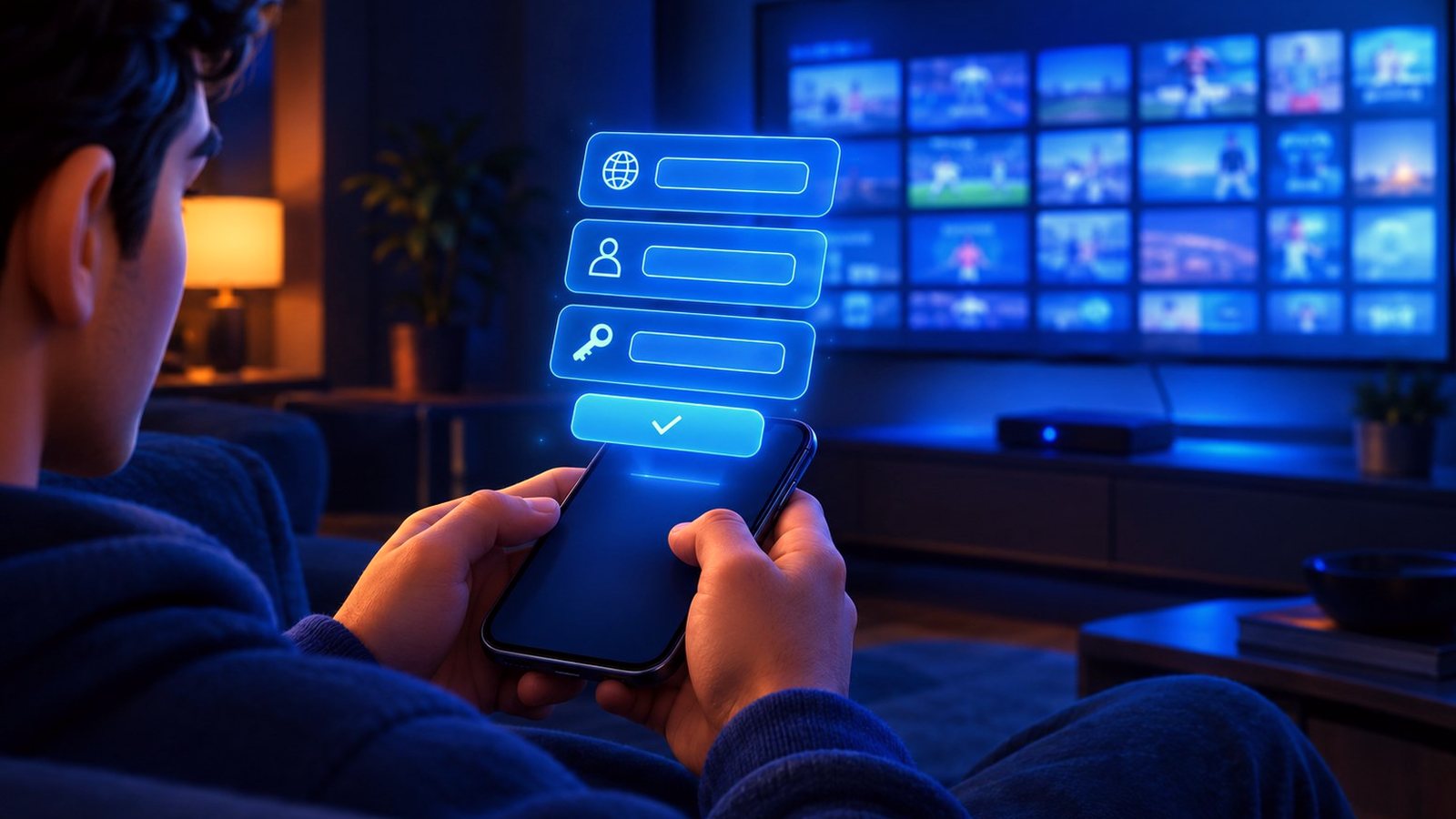
The process is the same on a phone, a tablet and a box. The only real difference is that typing on a TV remote is unpleasant, so there is a shortcut for that below.
- Install your player. From the Play Store on a phone or tablet, or from the Play Store on the TV device itself for a box or Google TV.
- Open your welcome email. You are looking for three things: the server URL (often called host or portal), your username, and your password.
- Add a playlist using Xtream Codes, not M3U. Choose the Xtream Codes or “login with credentials” option, then paste the server URL and enter the username and password exactly as given, including case.
- Let the list load. The first sync pulls thousands of channels and the full guide, so give it a minute. It is much faster afterwards.
- Set your favourites. Mark the twenty channels you actually watch. Scrolling a full list with a remote every evening is the fastest way to fall out of love with IPTV.
Typing on a TV remote: don’t. Install the Google TV or Android TV remote app on your phone and use the phone keyboard to enter the credentials. It turns a five-minute ordeal into fifteen seconds, and it removes the typos that cause most “my login does not work” messages.
If you want the same walkthrough with device-by-device screenshots for other platforms, our full setup guide covers the whole range.
The Settings That Actually Matter
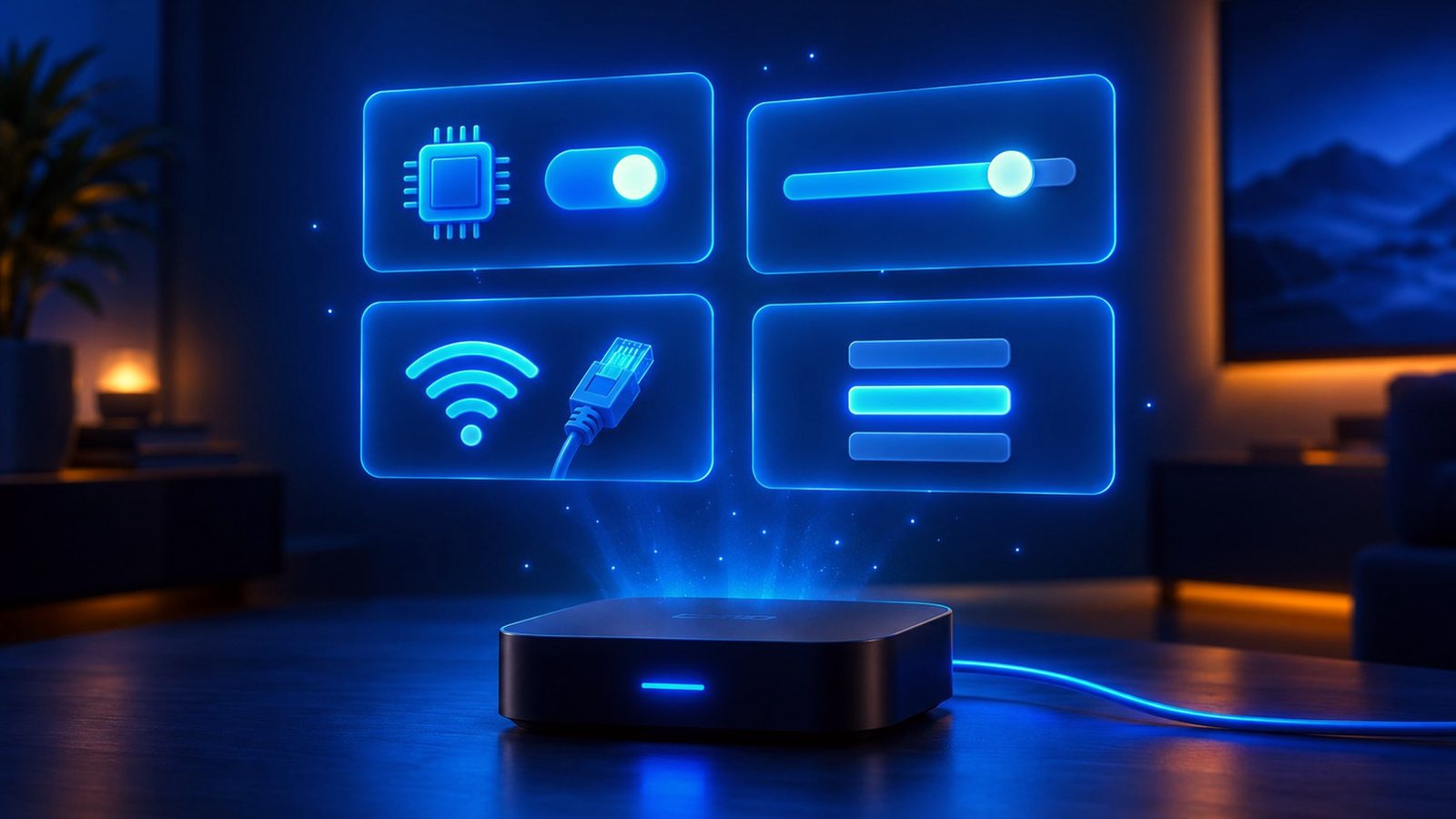
Once the list loads, almost everything that goes wrong afterwards traces back to one of four things.
- Decoder. Leave it on hardware, which is efficient and keeps the device cool. If a specific channel shows a black screen with working audio, or breaks up in blocks, switch that channel to software decoding. If most channels are fine and one is not, the decoder is your first suspect.
- Buffer size. The default is usually tuned for speed of channel changing rather than stability. Raising it adds a second or two before playback starts and removes most micro-stutters. On a box on Ethernet you can leave it low. On Wi-Fi, raise it.
- Wi-Fi band. Use 5 GHz. The 2.4 GHz band is crowded by every neighbour, every smart plug and every microwave, and it is the most common cause of evening-only stuttering. Better still, put the TV box on Ethernet and stop thinking about it.
- Stream quality. A phone screen gains nothing from a 4K stream and pays for it in data and heat. Pick the SD or HD variant on mobile and reserve the highest quality for the television.
If stuttering survives all four, the problem is upstream of the app. Test the same channel on a second player, then on a second network such as a phone hotspot. If it is bad everywhere, it is the server, and that is a provider question. Our live sport guide explains how to tell an oversold server from a local network problem, which is the exact distinction that matters at kick-off.
Common Android Mistakes
- Buying a no-name TV box. The cheapest boxes ship with an underpowered chip, no HEVC hardware decoding and an Android build that will never be updated. Every stream on earth stutters on hardware like that. Buy a mainstream device.
- Using a player with no Xtream Codes support. You lose the programme guide and the category structure, and then blame the provider for a “messy” channel list that was never the provider’s fault.
- Leaving a VPN on by default. A VPN adds a hop and usually a slower route. It is one of the most common hidden causes of stuttering on Android, precisely because people forget it is running.
- Running the box over 2.4 GHz Wi-Fi. It works at 3pm and falls apart at 9pm, which makes it look like a provider problem with impeccable timing.
- Never setting favourites. Nothing technical, but it is the difference between a service you use and one you abandon.
The Verdict
Android gives you more control over IPTV than any other platform, and the setup that works is consistent: a mature player from the Play Store, Xtream Codes credentials you own, hardware decoding with a software fallback, a sensible buffer, 5 GHz or Ethernet, and a stream quality matched to the screen. Do that and a phone, a tablet and a TV box all behave the same way, because they are all running the same well-understood pieces.
What makes it possible is the provider handing you credentials in the first place. DrogonTV gives you Xtream Codes and M3U details that work in any player you choose on any Android device, plans and prices published on the site, and a 7-day money-back guarantee so the first week is at our risk. If you would rather not take our word for the playback, install two players and test it yourself. That is exactly what Android is for.
Frequently Asked Questions
What is the best IPTV app for Android?
The best app is a mature, regularly updated player with Xtream Codes API support, a toggle between hardware and software decoding, and an adjustable buffer. On a phone or tablet, use one built for touch. On an Android TV box or Google TV, use one built for a remote. Avoid any private APK a seller sends you by message.
Can I watch IPTV on an Android phone?
Yes. Install an IPTV player from the Play Store, enter your Xtream Codes server URL, username and password, and the channel list and guide load automatically. On mobile data, pick a lower-quality stream, because a high-bitrate stream will consume an allowance very quickly and generate a lot of heat.
Do I need an Android TV box, or is a smart TV enough?
A box is usually the better main-television choice. It has more processing power than most built-in TV platforms, gets app updates for longer, supports any player you want, and can be replaced on its own when it ages instead of replacing the television.
Why does IPTV keep buffering on my Android box?
In order of likelihood: 2.4 GHz Wi-Fi, a buffer set too low, a VPN left running, hardware decoding failing on a particular channel, or an underpowered no-name box. Test the same channel in a second player. If it is smooth there, the app was the problem; if not, look at the network, then the server.
What are Xtream Codes and why use them instead of an M3U link?
Xtream Codes is an API that returns your channel list, categories, on-demand library and full programme guide from a server URL, username and password. An M3U link is a flat playlist file. Both work, but Xtream Codes gives a far better experience and is easier to re-enter on a new device.
Can I use the same subscription on my phone and my TV box?
That depends on how many simultaneous connections your plan includes. The credentials themselves work on every device, but watching on two screens at the same time needs a plan that allows two streams. Check the connection count on the plan before you buy rather than after.
Is it safe to install an IPTV APK from a link?
Installing software from an unverified link is a risk that has nothing to do with television. Prefer players from the Play Store, where the developer is identifiable and updates are signed. A provider whose service only works through its own private app has removed your ability to test, switch or diagnose anything.
How much internet speed do I need for IPTV on Android?
Roughly 10 Mbps of steady throughput per HD stream and 25 Mbps for 4K. Stability matters more than the headline number: a consistent 25 Mbps beats a 200 Mbps line that dips, which is why a wired box outperforms a faster connection over congested Wi-Fi.
Works on every Android device you own
Xtream Codes and M3U credentials you own, any player you like, published prices, and a 7-day money-back guarantee. Set it up in five minutes on a phone, a tablet or a TV box.